
Before you start
You’ll need a Cloudflare account, a GitHub account, and a Komerza store that supports custom payment methods.1. Deploy the bridge
Click the button below, connect GitHub to Cloudflare, and enter these settings when prompted:
Keep API keys in Cloudflare secrets, not GitHub or normal variables. Choose
Create private Git repository if Cloudflare asks. Leave the generated
project and resource names unchanged; their bindings are already configured.
2. Copy the Worker URL and approve it
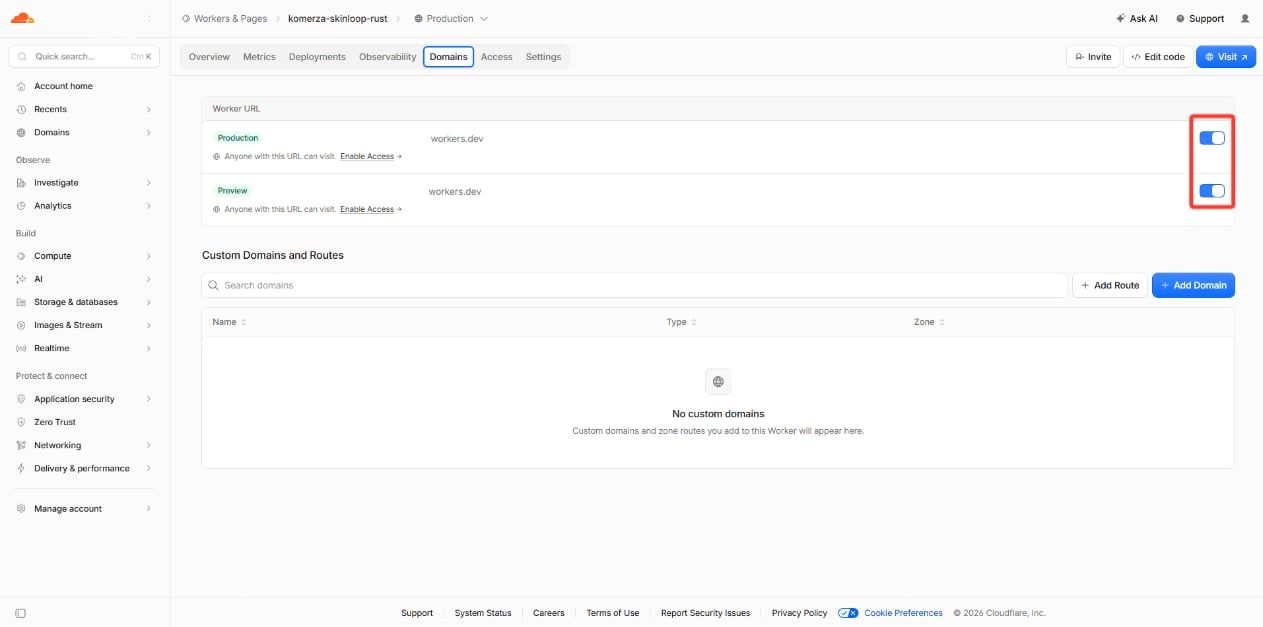
In Cloudflare → Workers & Pages → your Worker → Domains & Routes, turn on the Productionworkers.dev URL and copy it. Example:
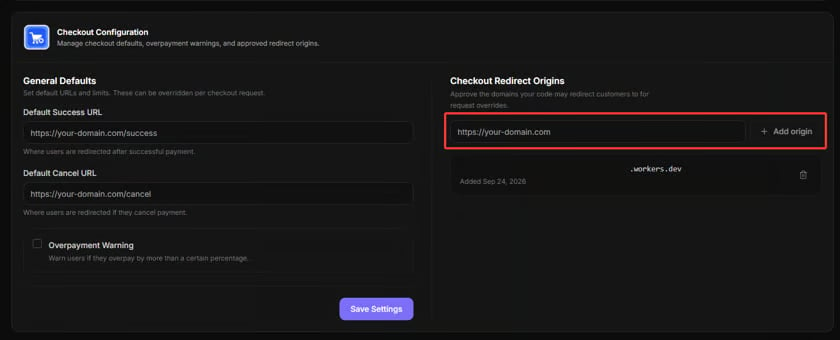
/pay, /return, /cancel, or /webhook/skinloop to the
redirect origin.
3. Connect Skinloop’s webhook
- Open your Worker URL and copy its
webhookEndpoint. - In Skinloop → API Keys & Webhooks → Webhooks, add that endpoint and
subscribe to
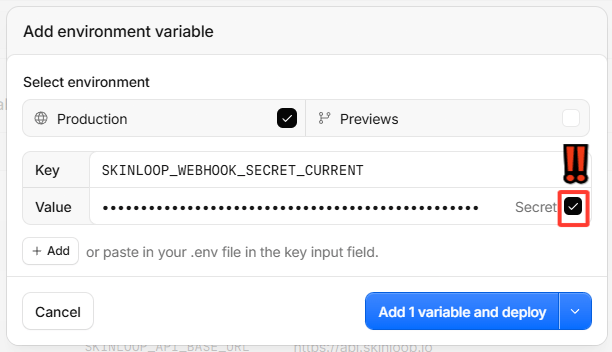
payment.pending,payment.completed, andpayment.reverted. - Copy the signing secret Skinloop shows once. In Cloudflare → Workers &
Pages → your Worker → Settings → Variables and Secrets, add it as a
Production Secret named
SKINLOOP_WEBHOOK_SECRET_CURRENT, then deploy.
4. Add the Komerza payment method
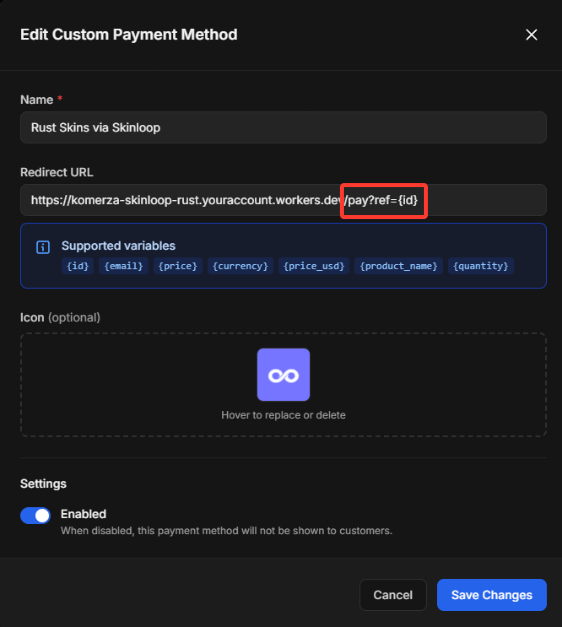
In Komerza → Settings → Payment Methods → Custom Payment Methods, add a Redirect method. Use your Worker URL followed by/pay?ref={id}.
Example (replace the domain with yours):
{id} exactly as written; Komerza fills in the unpaid order ID.

5. Test before enabling it for buyers
Create a low-value unpaid Rust order and select the new payment method. Check that the customer reaches Skinloop checkout with the correct amount, a cancelled checkout does not fulfill the order, and a completed payment fulfills it once. Enable the method for buyers only after this test succeeds.If checkout does not open
In Cloudflare → Workers & Pages → your Worker → Observability → Logs, find the failed/pay request by its time. Send
Skinloop support the time (including time zone),
HTTP status, and error shown to the buyer. If Cloudflare shows a Ray ID,
include it as a support reference. Hide order IDs, buyer details, and secrets
in any screenshot or log you share. Never send API keys or signing secrets.
If no logs appear, turn on Workers Logs in Cloudflare’s Observability
settings. Do not retry an order if a payment may already be in progress;
contact support instead.